What are SMTP Settings?
SMTP Settings in Kiwiform allow you to configure and manage sender email addresses used for respondent emails and automated email workflows.
You can connect email accounts using:
Custom SMTP configuration
Gmail OAuth integration
Outlook OAuth integration
Custom SMTP (Simple Mail Transfer Protocol) configuration allows Kiwiform to send emails through your own email provider or mail server. Instead of sending emails from a generic system address, SMTP lets you send emails from your custom email address or branded domain.
For faster setup, Kiwiform also supports direct Gmail and Outlook integrations using secure OAuth authentication. These integrations remove the need for manual SMTP credentials, app passwords, or server configuration.
All configured email accounts become available inside the From Email Address dropdown within Email to Respondents settings.
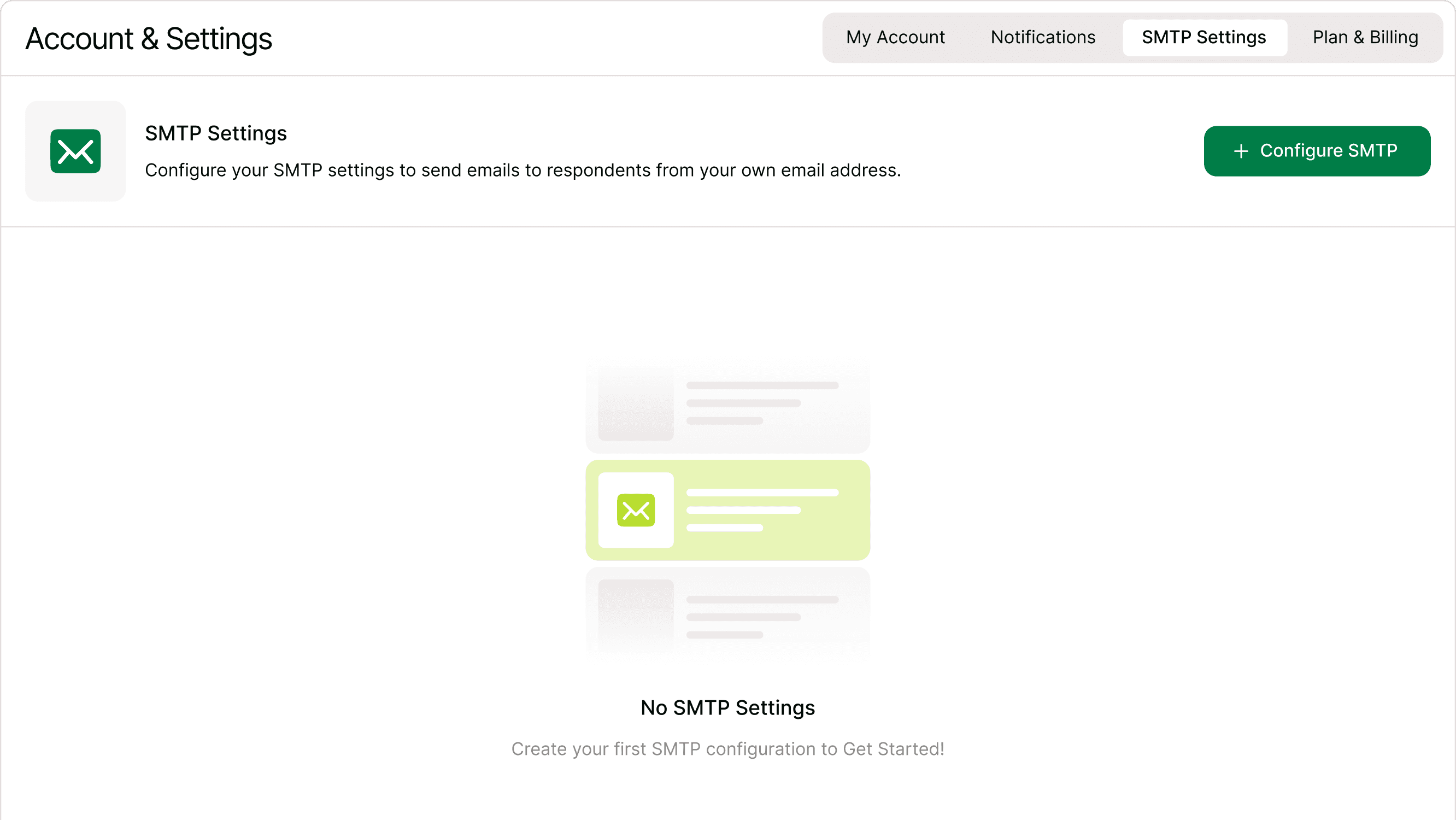
Where to Find SMTP Settings
You can configure SMTP from your account settings.
Steps:
Open your Kiwiform Dashboard
Go to Account Settings
Select SMTP Settings
Enter your email provider’s SMTP details
Save your configuration
Once saved, Kiwiform will use your SMTP server for sending emails related to your forms.
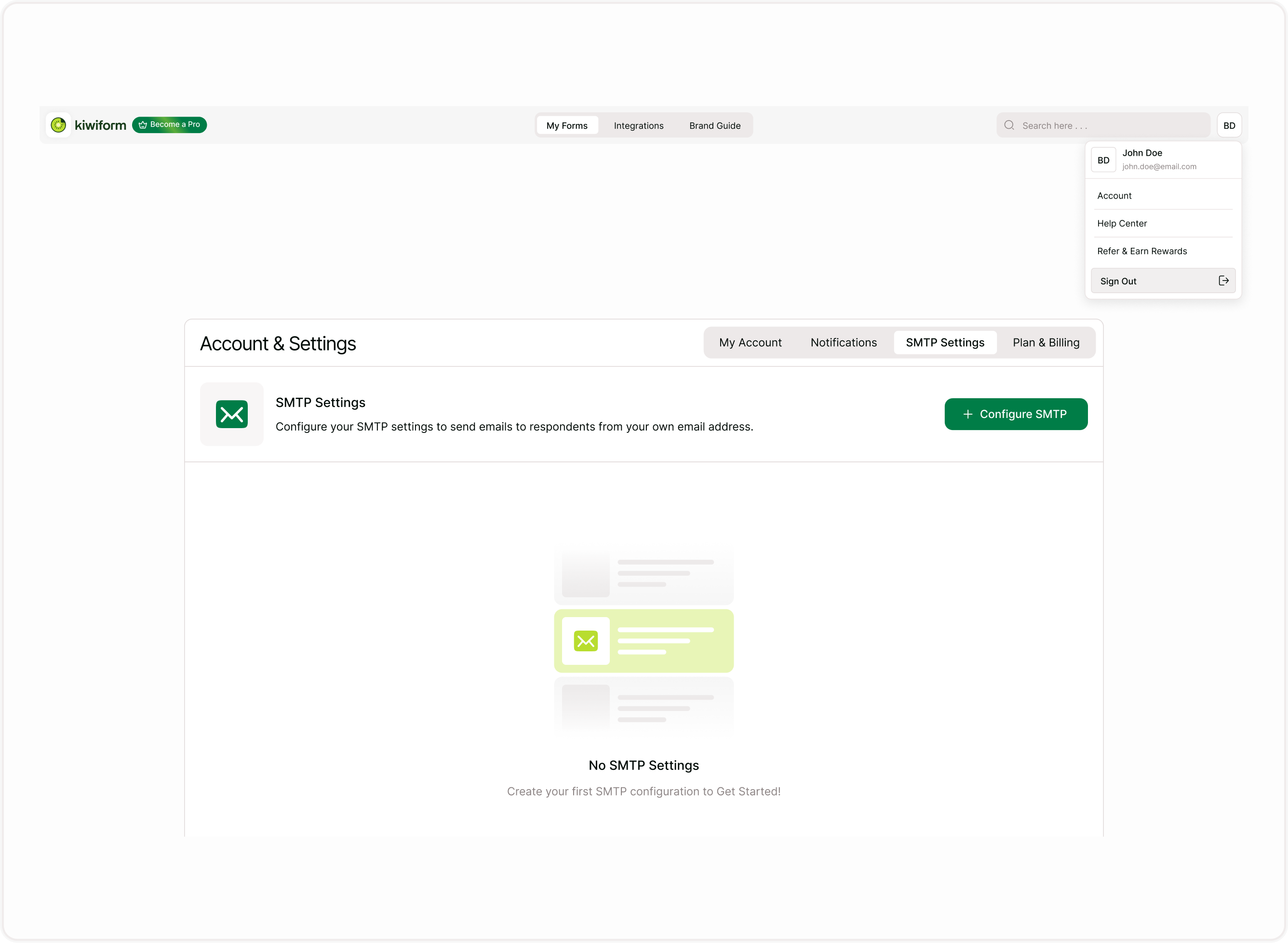
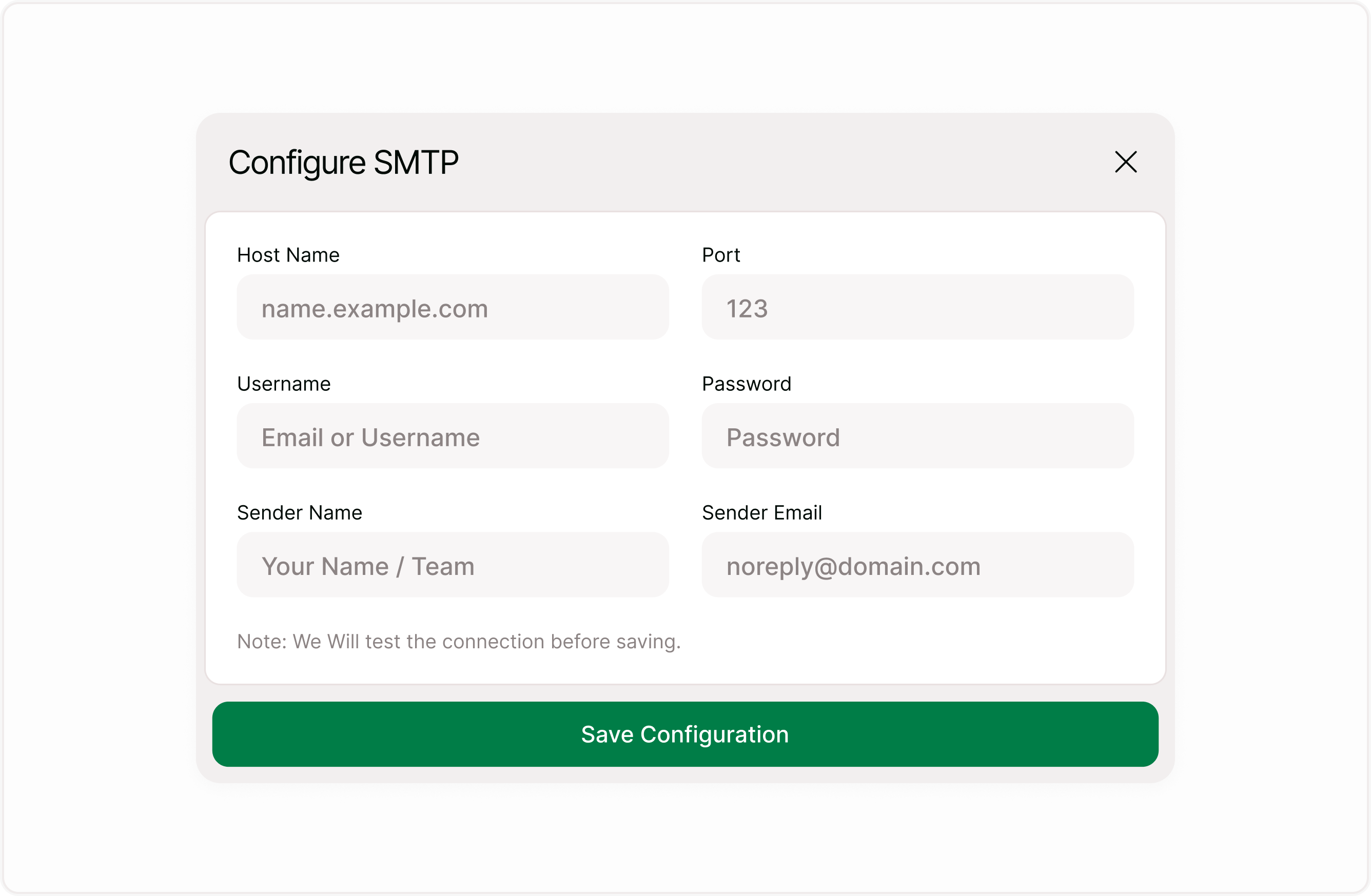
SMTP Configuration Fields
To connect your SMTP server, you’ll need to provide the following details.
These fields are required only when configuring a custom SMTP email provider. Gmail and Outlook accounts use secure OAuth authentication instead.
SMTP Host
The server address provided by your email provider.
Example:smtp.gmail.com
Port
The port used by the SMTP server.
Common ports:
587 (recommended for TLS)
465 (SSL)
Username
Your email account username.
Usually this is your full email address.
Example:[email protected]
Password
Your email account password or app password.
Some providers (like Gmail) require app-specific passwords instead of your regular login password.
Encryption
Select the security method used by your provider:
TLS
SSL
Why Use Custom SMTP?
Kiwiform supports multiple ways to configure sender email addresses depending on your workflow requirements.
You can:
Use custom SMTP infrastructure
Connect Gmail accounts
Connect Outlook accounts
Manage multiple sender identities
This flexibility makes it easier to manage branded communication, automated workflows, and respondent notifications across different workflows and teams.
Branded Email Sender
Emails will be sent from your own domain instead of a generic system email.
Example:[email protected]
Better Deliverability
Emails sent through authenticated domains are less likely to be marked as spam.
Trusted Communication
Respondents are more likely to trust emails coming from your official domain.
Greater Control
You can manage sending limits, authentication settings, and reputation directly through your email provider.
Gmail and Outlook integrations use secure OAuth authentication, making setup faster and easier without requiring manual SMTP credentials or app passwords.
Common SMTP Providers
You can connect Kiwiform with most email services that support SMTP.
These providers are commonly used for custom SMTP configurations in Kiwiform.
Common providers include:
Gmail
Google Workspace
Outlook
Office 365
Zoho Mail
SendGrid
Amazon SES
Custom domain email servers
Each provider supplies the SMTP credentials required to configure the connection.
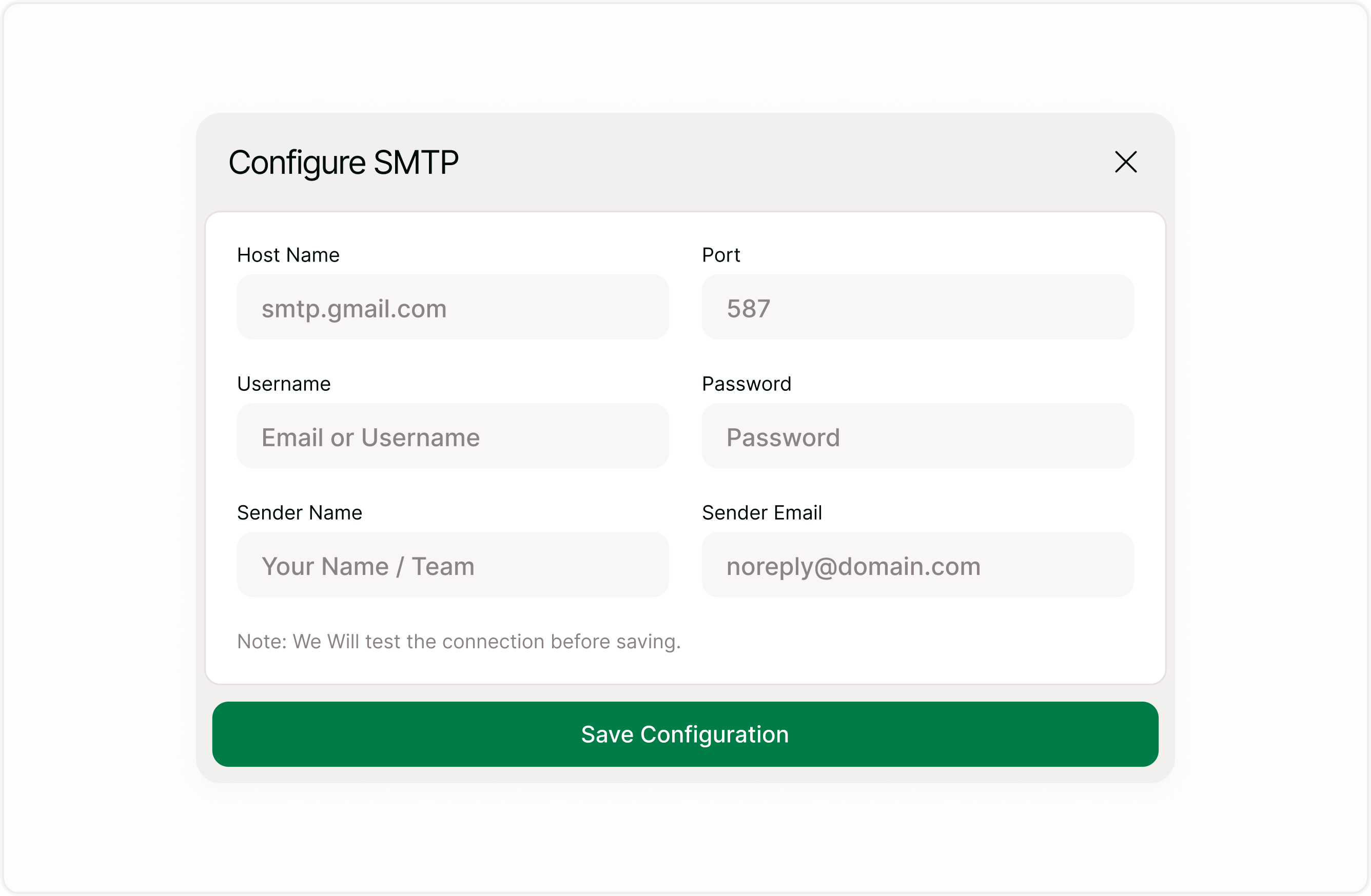
Example: SMTP Setup with Gmail
If you want to send emails from your Gmail account:
Use the SMTP host
smtp.gmail.comUse port
587Enable TLS encryption
Use your Gmail address as the username
Generate an App Password from your Google account security settings
Enter these details in the SMTP settings panel and save the configuration.
If you prefer a simpler setup experience, you can also connect Gmail directly using OAuth instead of manual SMTP configuration.
When Should You Configure SMTP?
SMTP configuration is useful when you want to send emails using your own business email provider, branded domain, or private mail server.
If you want a faster setup experience, Gmail and Outlook OAuth integrations may be easier to configure.
Sending Emails from Your Domain
If you want notifications to appear from your brand email.
Improving Email Deliverability
If your forms send frequent notifications or confirmation emails.
Sending Respondent Emails
When using features like confirmation messages or automated follow-ups.
Business and Team Use
If your organization requires official communication from a verified email address.
Troubleshooting SMTP Issues
If SMTP emails are not being delivered:
Check the SMTP credentials
Ensure the host, port, username, and password are correct.
Verify encryption settings
Use TLS or SSL depending on your provider.
Use an App Password
Some providers require app passwords instead of regular account passwords.
Check sending limits
Some email providers limit the number of emails per day.
Review spam filters
Make sure your domain and sending address are properly authenticated.
Gmail or Outlook connection failed
Try reconnecting the account and verify that browser popups and permissions are enabled.
Sender email does not appear in dropdown
Refresh the Email to Respondents settings after connecting the account.
OAuth popup does not open
Allow browser popups and try connecting the account again.
Best Practices for SMTP Configuration
Follow these best practices for reliable email delivery.
Use verified domains for sending emails
Enable SPF and DKIM authentication
Use TLS encryption whenever possible
Avoid sending large volumes from personal email accounts
Monitor email deliverability from your provider dashboard
Use Gmail or Outlook OAuth for faster setup
Keep sender email addresses organized by workflow
Test sender emails before publishing forms
Remove unused sender accounts regularly
Summary
SMTP Settings in Kiwiform allow you to configure sender email accounts using custom SMTP settings, Gmail OAuth, and Outlook OAuth integrations. Once connected, these email addresses can be used across Email to Respondents workflows to send branded, reliable, and professional emails directly from your forms.