How to Access Responses
To view submissions:
Open your form.
Click Results in the top navigation.
Select the Responses tab.
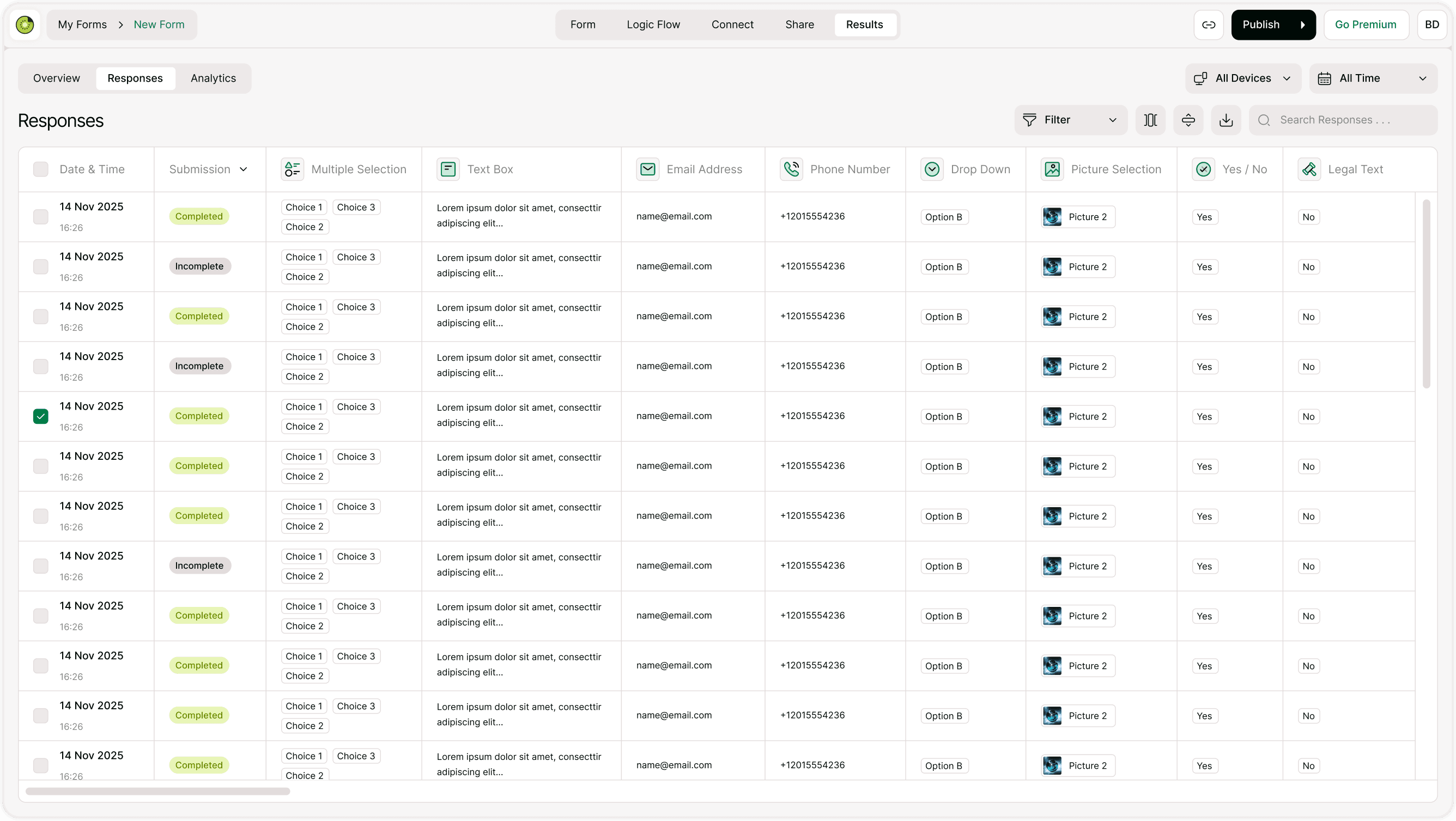
You will see a structured table containing all form submissions.
Understanding the Responses Table
The Responses table displays each submission as a row. Each column represents a question or data field in your form.
Key columns include:
Date & Time
Submission Status (Completed / Incomplete)
Question responses
Contact details (if collected)
Uploaded files (if applicable)
This layout allows you to quickly scan and review responses without opening each one individually.
Completed vs Incomplete Submissions
Each submission is labeled:
Completed → The user submitted the full form.
Incomplete → The user started but did not finish.
Tracking incomplete submissions helps you:
Identify friction points
Improve form structure
Optimize question clarity
Reducing incomplete submissions increases your overall conversion rate.
Filtering Responses
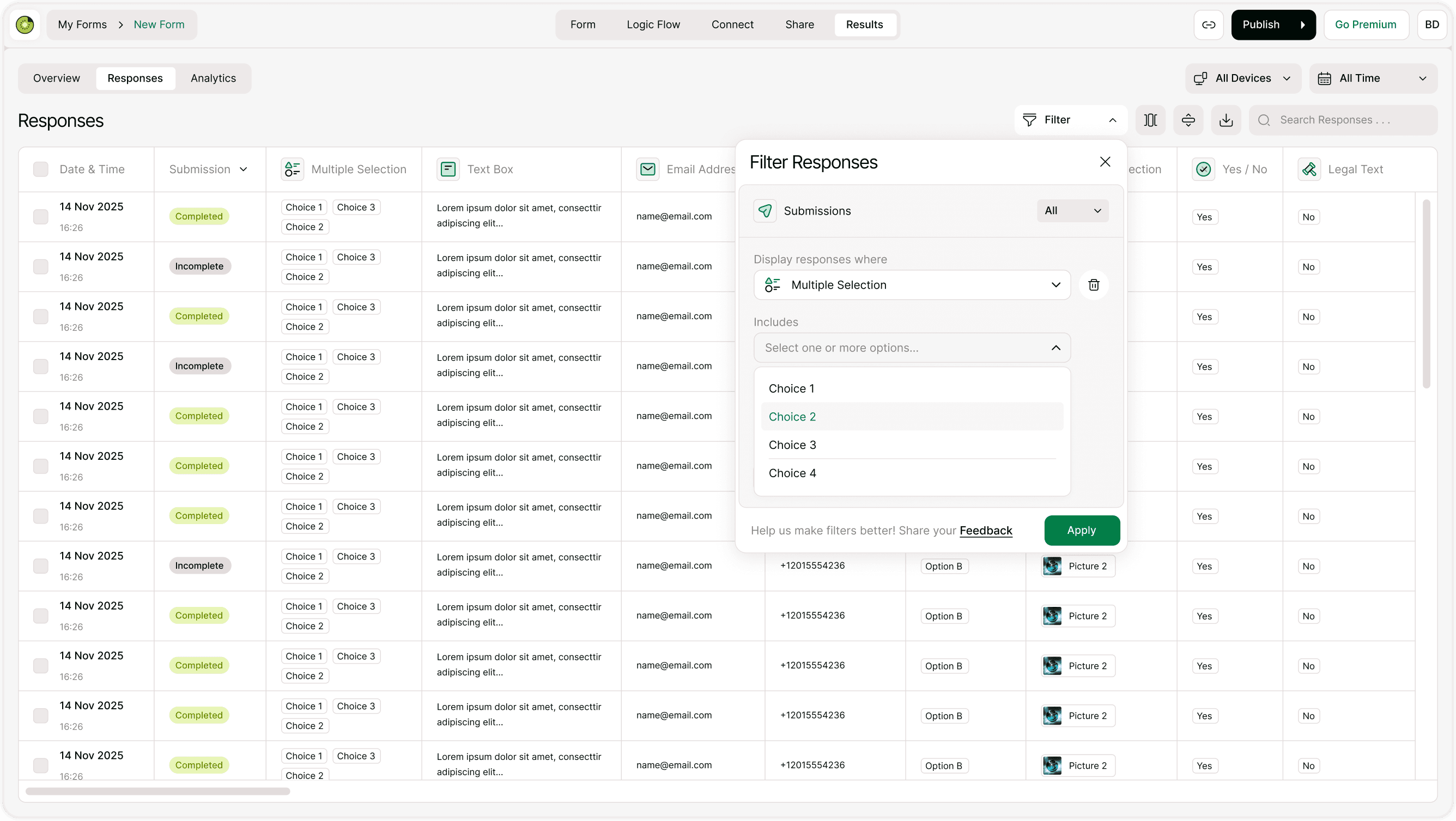
You can use the Filter option to narrow down responses based on:
Date range
Submission status
Specific answers
Device type
Time period
Filtering is useful when:
Reviewing campaign performance
Searching for a specific submission
Analyzing responses from a particular timeframe
Searching Responses
Use the search bar to quickly find:
A specific email address
A phone number
A keyword from a text answer
A selected option
This is especially helpful when handling customer support, applications, or lead follow-ups.
Sorting and Organizing Data
You can sort responses by:
Date
Submission status
Specific question columns
Sorting helps you:
View the most recent responses first
Identify patterns
Quickly access new submissions
Viewing Individual Responses
Although responses are displayed in table format, you can also review each submission in detail.
This is helpful when:
Reviewing long text answers
Checking file uploads
Validating legal agreements
Verifying application details
Structured data makes individual review easier and faster.
Exporting Responses
If you need to:
Share data with your team
Import into CRM tools
Perform advanced analysis
Keep backup records
You can export your responses.
Exporting allows you to work with the data outside the platform when needed.
Managing Large Volumes of Responses
For forms with many submissions:
Use filters regularly
Export data periodically
Monitor completion status
Archive older responses if needed
Staying organized prevents data overload.
Real-World Use Cases for the Responses Page
The Responses tab is especially useful for:
Reviewing job applications
Tracking customer feedback
Managing event registrations
Following up with leads
Processing internal requests
Having centralized response management improves efficiency.
Best Practices for Managing Responses
Review new submissions daily (for active forms).
Follow up promptly on leads or applications.
Export data regularly for backups.
Monitor incomplete submissions to improve form performance.
Use filters to stay organized.
Good response management improves workflow and customer experience.
Summary
The Responses page provides a complete view of every submission collected through your form. With filtering, sorting, and search capabilities, you can efficiently manage, analyze, and export data in one place. Organized responses lead to better decisions and smoother workflows.