What Is Quiz Result?
Quiz Result allows you to show different ending screens depending on how someone answers your quiz.
Instead of showing the same ending to everyone, you can:
Display outcomes based on selected answers
Match responses to a specific result
Show results based on scoring
Create personality-style quizzes
Build knowledge-based assessments
Quiz Result connects answers to endings using rules. When a respondent finishes the quiz, the ending that matches their responses is automatically displayed.
Where to Find Quiz Result
To configure Quiz Results:
Open your form
Click Logic Flow from the center header navigation
On the Logic Board, click Quiz Result from the top-left logic tools
The Quiz Result modal will open
From here, you can:
Add multiple endings
Assign answers to each ending
Set a default ending
Save your result rules

How Quiz Result Works
Quiz Result connects:
Answers → Ending Screens
Each ending can be linked to one or more answers. When a respondent completes the quiz, Kiwiform checks which ending has the highest matching score or rule priority and displays it.
There are two main approaches:
Outcome-based quiz (Personality style)
Score-based quiz (Knowledge style)
Both are configured inside the same Quiz Result modal.
Creating Your First Quiz Result
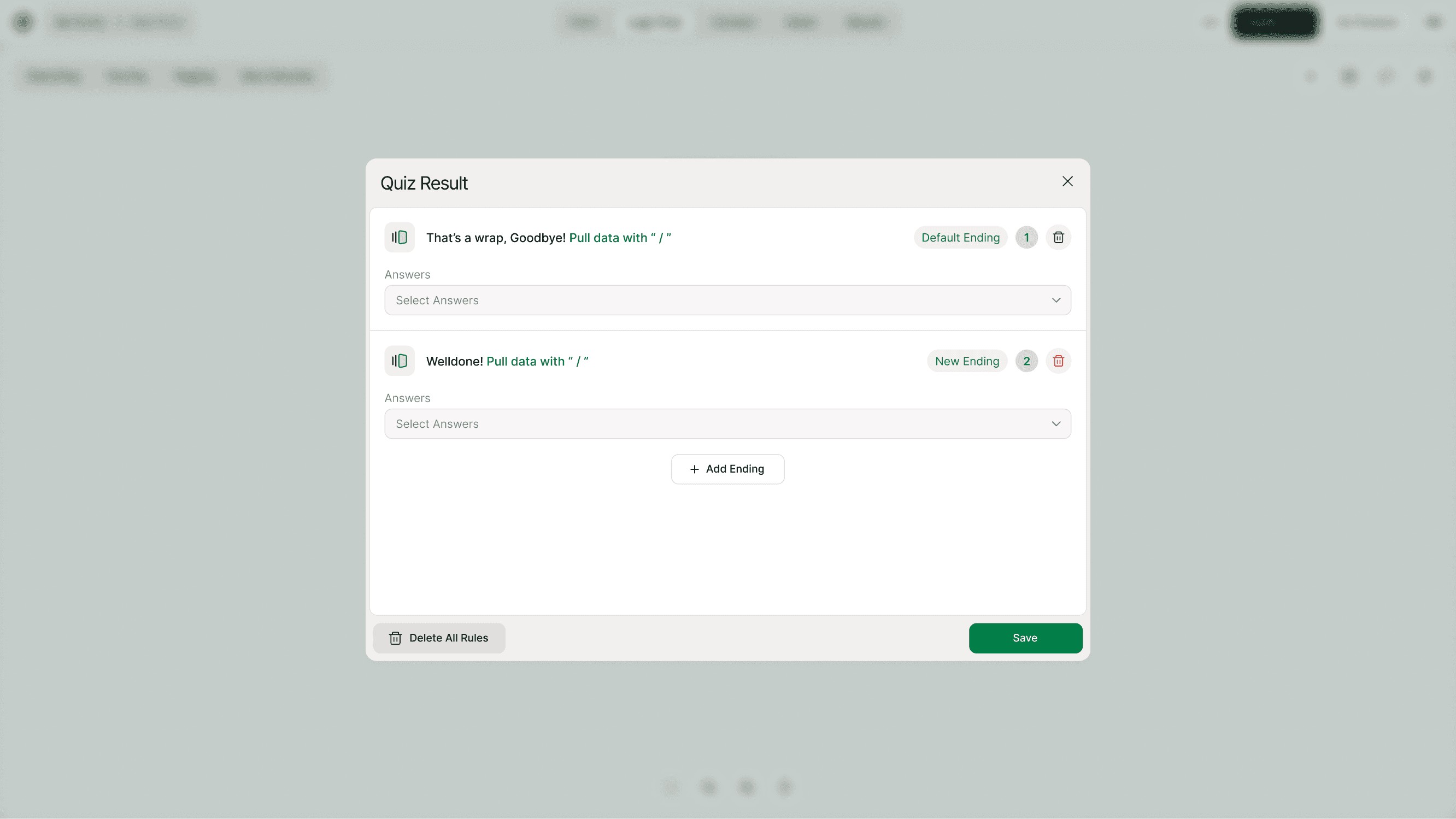
Step 1: Add Multiple Endings
Inside the Quiz Result modal:
Click + Add Ending
Create different result screens
Customize the title and description
One ending will be marked as Default
You can create as many endings as needed.
Step 2: Assign Answers to an Ending
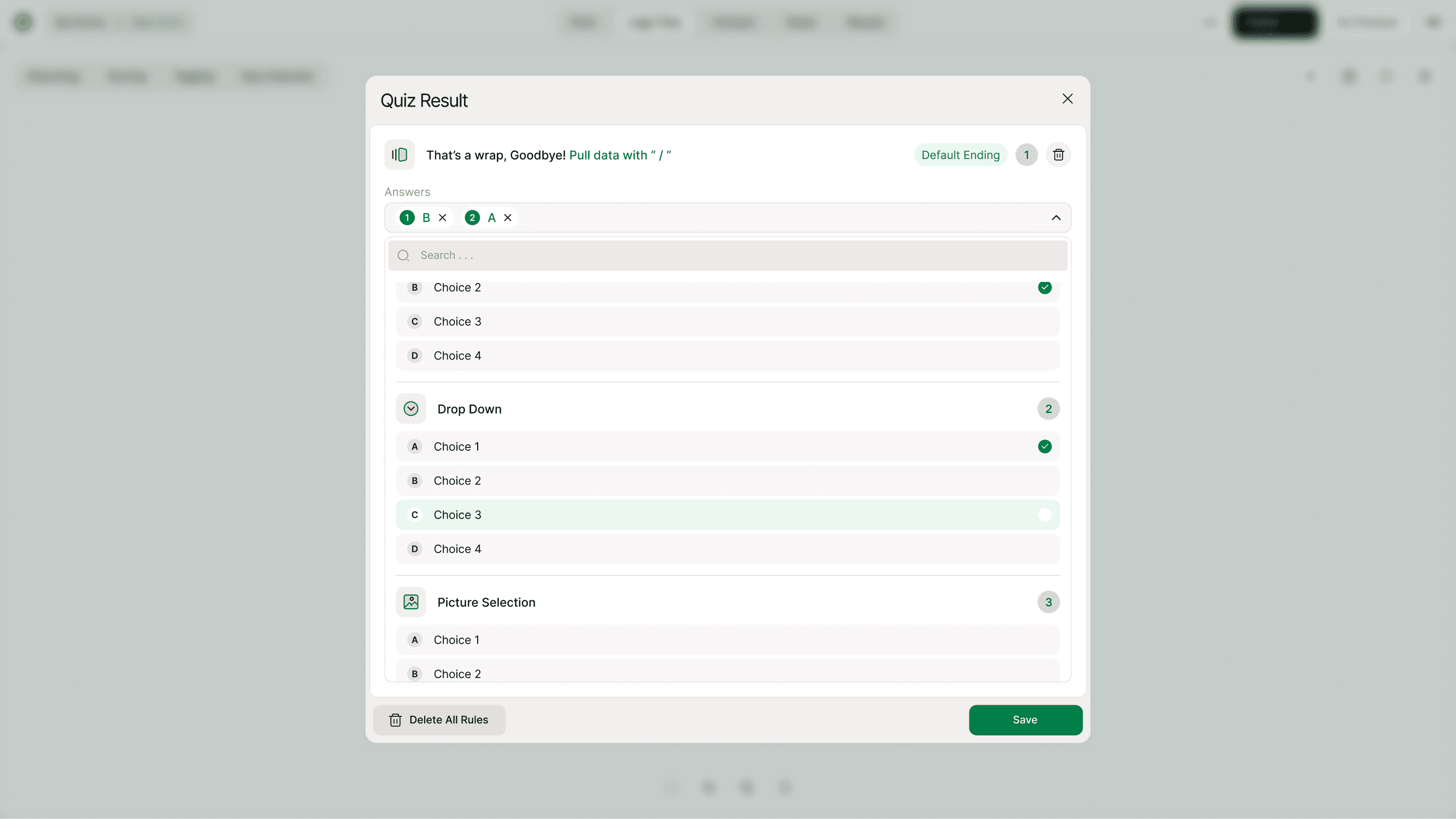
Under each ending, you’ll see an Answers section.
Click “Select Answers” to open the answer picker.
You can assign:
Specific answer choices
Entire question options
Quiz score variables
Max Score
Correct Answers
Total Scorable Questions
Once selected, those answers contribute to that ending.
Step 3: Use “/” to Pull Quiz Data
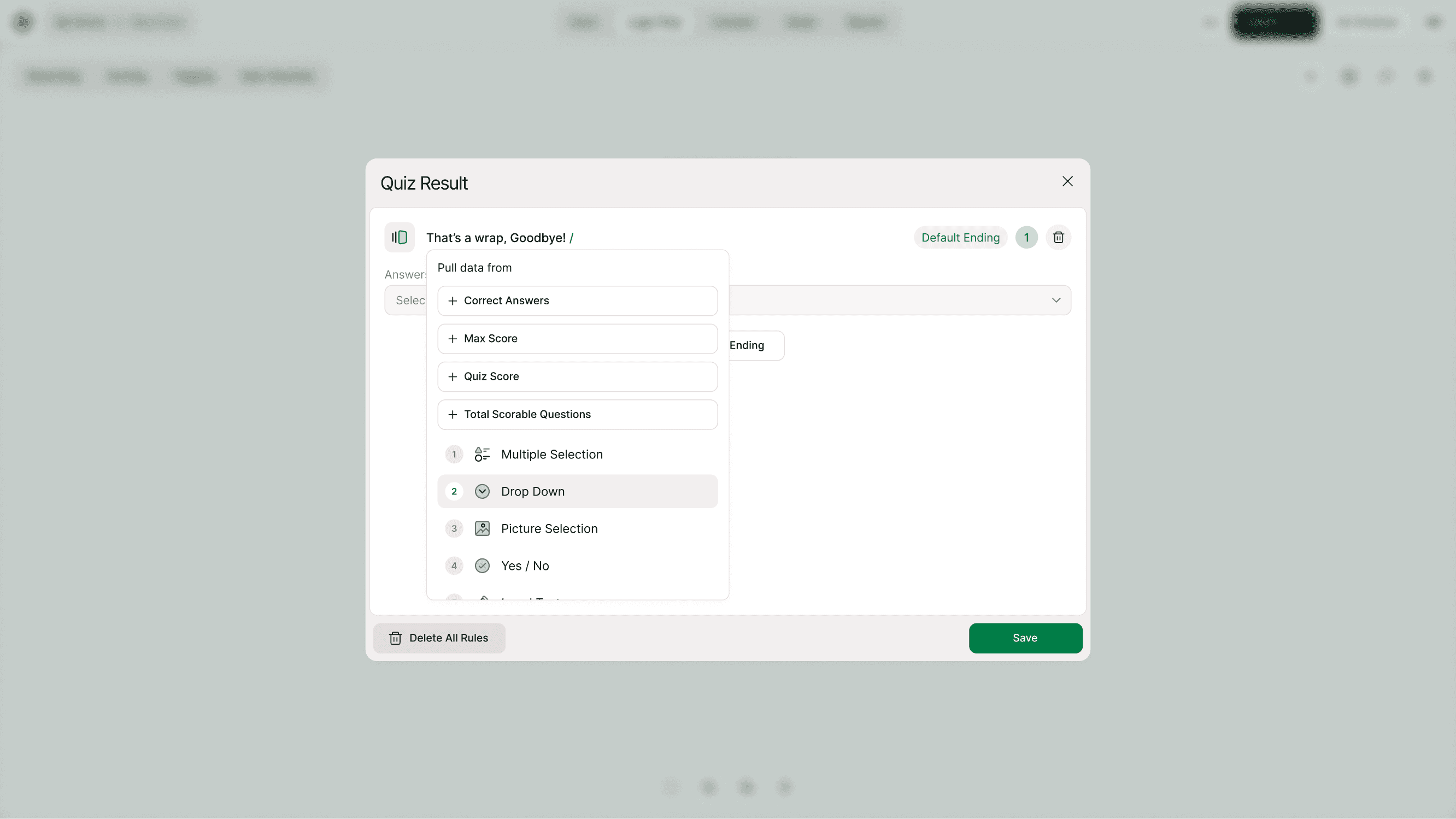
Inside the ending text, you can type:
/
This allows you to dynamically insert:
Correct Answers
Max Score
Quiz Score
Total Scorable Questions
Individual question answers
This makes your result screen personalized and dynamic.
Example:
“You scored /Quiz Score out of /Max Score.”
Default Ending Explained
One ending will always be marked as Default Ending.
This acts as a fallback result when:
No rules match
No answers are assigned
There’s a tie without priority
It ensures every respondent sees a result.
You can change which ending is default at any time.
Deleting an Ending
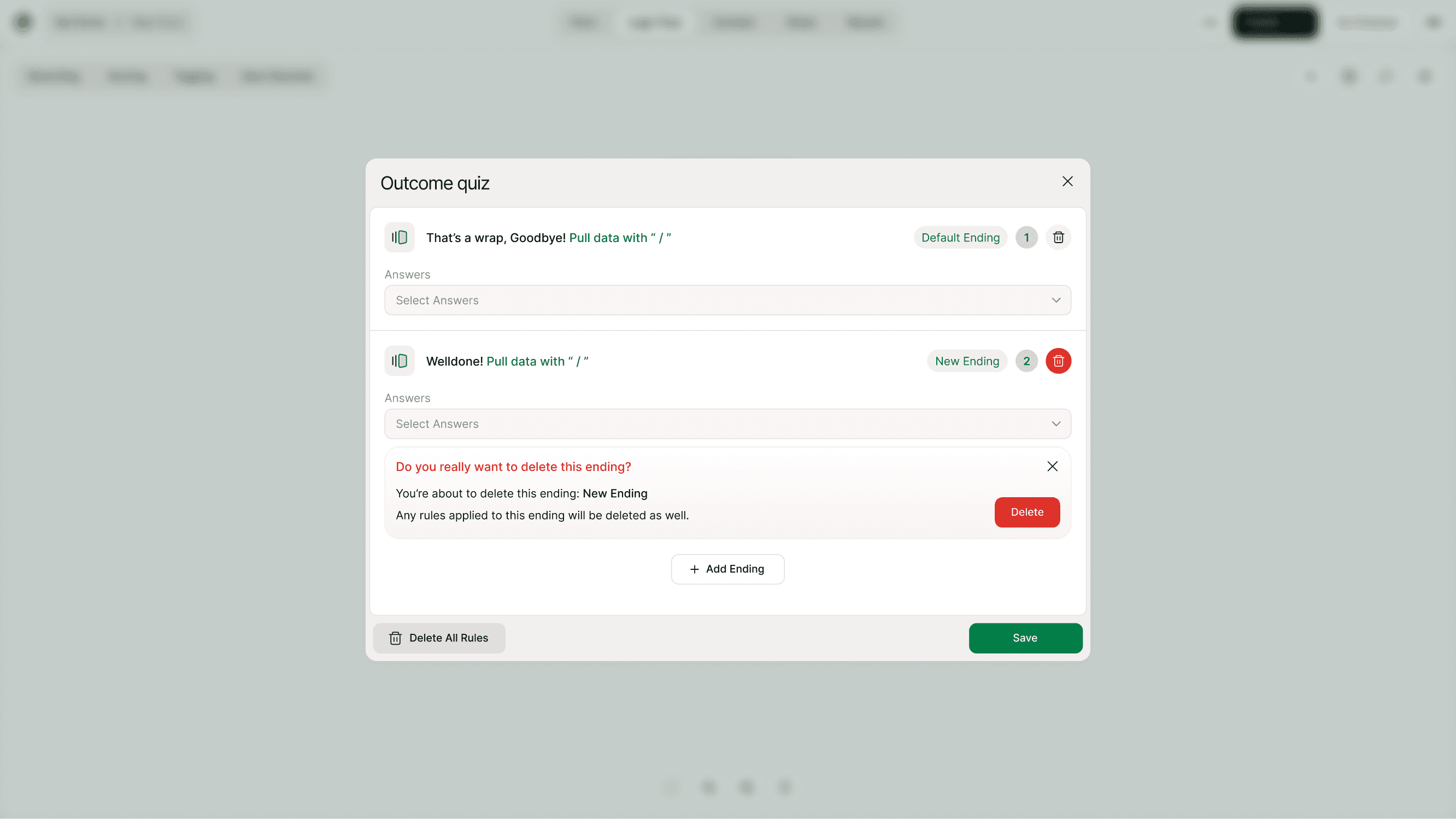
You can delete any ending by clicking the trash icon.
If rules are attached to that ending, they will be deleted as well.
Kiwiform will show a confirmation before removal.
Difference Between Outcome Quiz & Score Quiz
Outcome Quiz
Best for personality-style quizzes.
Answers are mapped to different endings directly.
Score Quiz
Best for knowledge tests or assessments.
Answers contribute to a total score. Results are displayed based on score ranges or score-based rules.
Both types are configured inside Quiz Result and Scoring together.
How Quiz Result Works with Scoring
Quiz Result integrates with the Scoring system.
You can:
Assign points to answers in Scoring
Use Quiz Score inside endings
Match results based on highest scoring category
Display performance-based messages
This allows advanced quiz setups like:
Beginner / Intermediate / Expert
Bronze / Silver / Gold
Pass / Fail
Real-World Use Cases
Personality Quizzes
Show result types like “The Leader”, “The Creator”, or “The Strategist”.
Knowledge Assessments
Display Pass/Fail or score-based feedback.
Product Recommendation Quiz
Recommend a product based on selected preferences.
Training Certification
Show result screen with score and next steps.
Marketing Engagement
Interactive quizzes for engagement and lead generation.
Educational Tests
Provide personalized feedback after exam completion.
Best Practices for Quiz Result
Create clear and meaningful endings
Always set a Default Ending
Use dynamic variables (/) to personalize results
Keep result screens concise and helpful
Test your quiz before publishing
Combine Scoring with Quiz Result for better logic
Avoid assigning overlapping answers unless intentional
Testing your result logic ensures accuracy.
Common Mistakes to Avoid
Not assigning answers to endings
Forgetting to set scoring when needed
Not testing result logic
Deleting endings without reviewing rules
Overcomplicating answer mapping
Keep your structure simple and scalable.
How to Test Quiz Results
Before publishing:
Click Play from the builder
Complete the quiz with different answer combinations
Verify that the correct ending appears
Adjust rules if needed
Testing prevents incorrect result displays.
Summary
Quiz Result in Kiwiform allows you to display dynamic, personalized endings based on respondent answers or scores.
Whether you're building a personality quiz, a knowledge assessment, or a product recommendation flow, Quiz Result helps you deliver tailored outcomes that increase engagement and provide meaningful feedback.
Combined with Scoring and Logic Flow, it gives you full control over how quiz outcomes are calculated and displayed — all inside an intuitive visual interface.