What is Email to Respondents?
Email to Respondents allows Kiwiform to automatically send personalized emails after someone submits your form.
You can use it to:
Send confirmation emails
Share follow-up information
Deliver onboarding instructions
Send receipts or acknowledgements
Send support or workflow emails
Emails can be sent using the default Kiwiform sender email or your own connected SMTP, Gmail, or Outlook email accounts.
How to Set Up Email to Respondents
You can access integrations directly inside your form:
Open your form
Go to the Connect tab
Open Email
Switch to Email to Respondents
Enable the toggle
Configure sender details
Customize email subject and content
Save changes
If no custom sender account is configured yet, Kiwiform automatically uses the default sender email address until additional email accounts are connected.
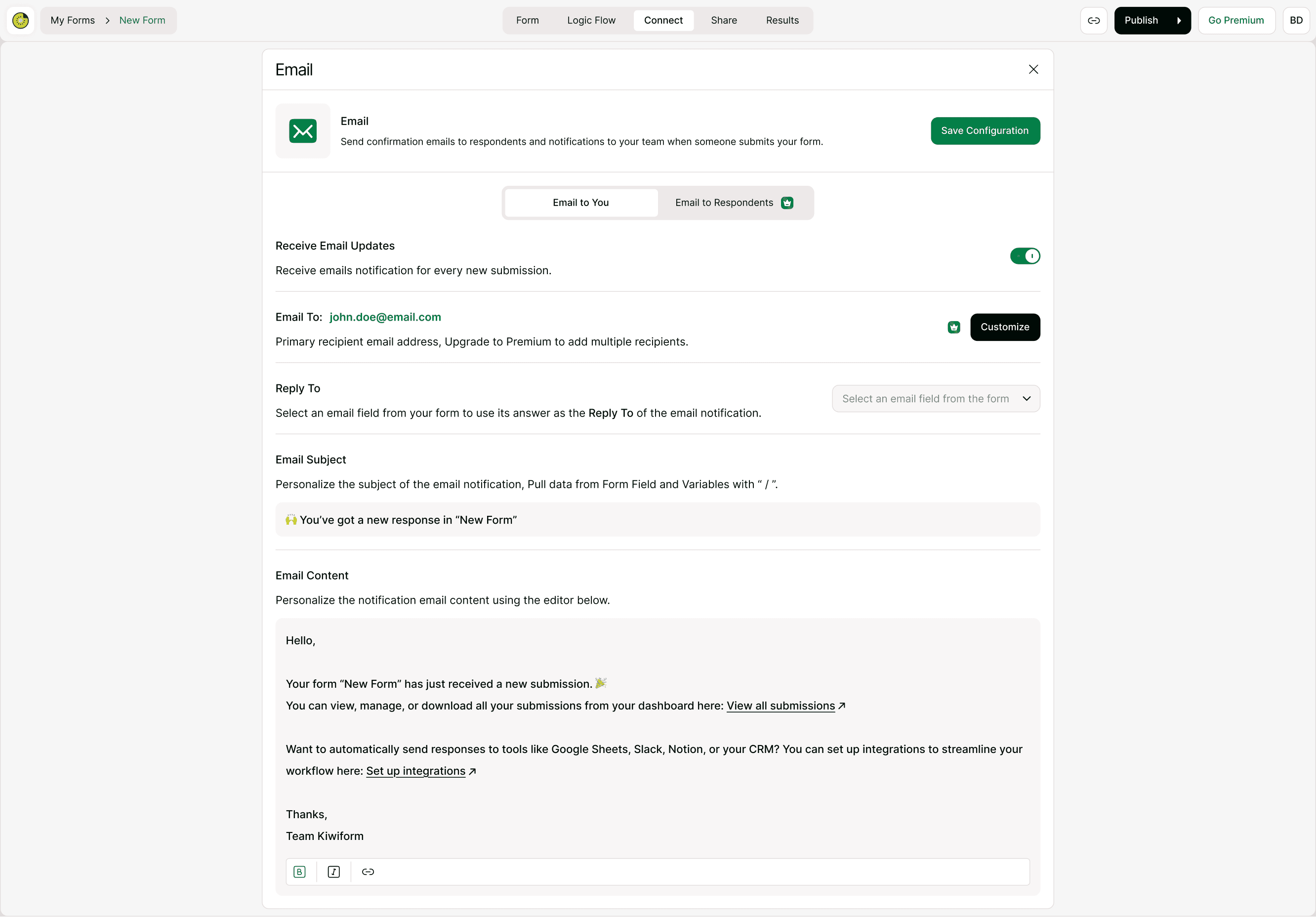
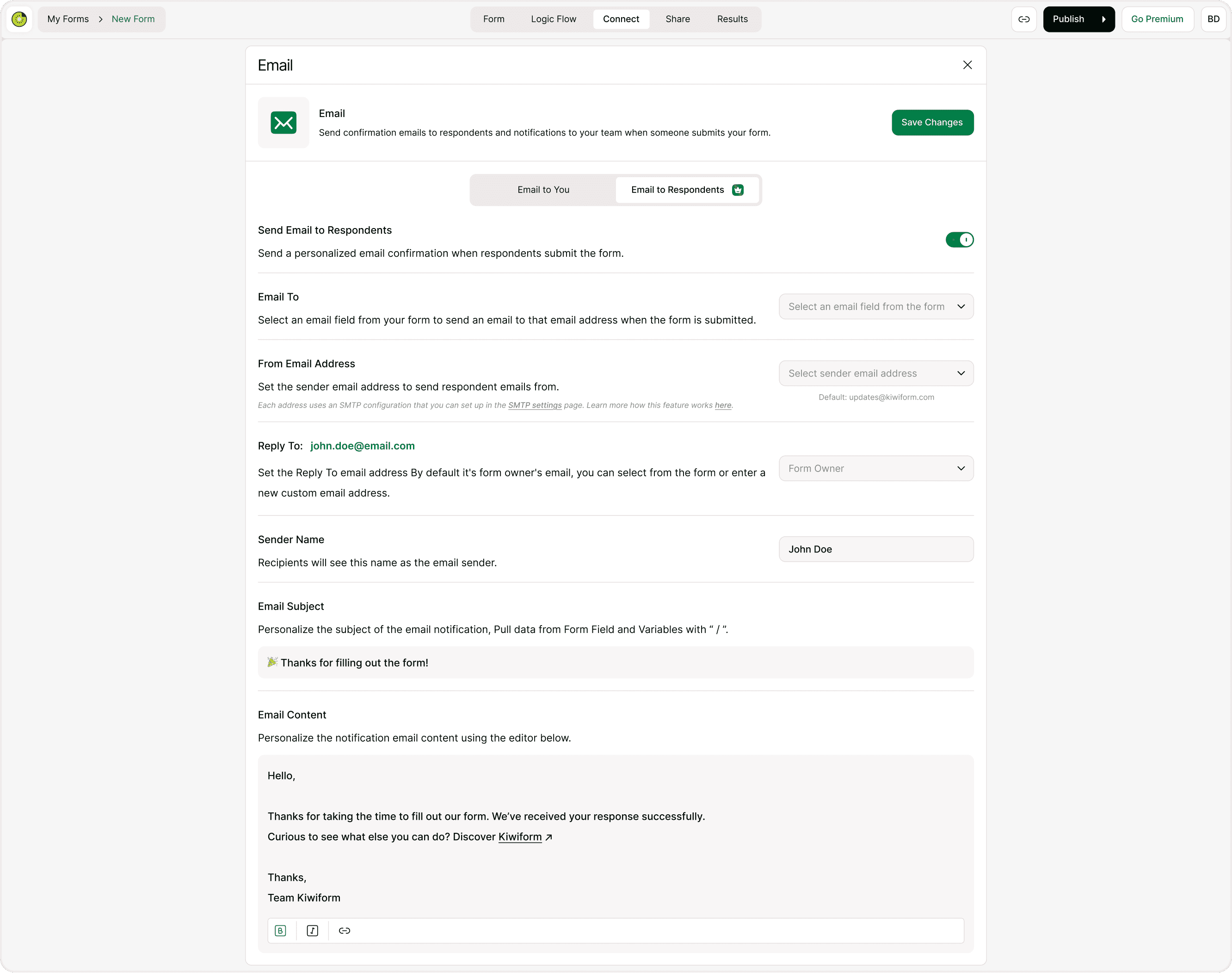
Configure Sender Details
Configure how respondent emails are sent by selecting the recipient email field, sender email address, reply behavior, and sender identity settings.
The From Email Address dropdown supports:
Default Kiwiform email
Custom SMTP email addresses
Connected Gmail accounts
Connected Outlook accounts
If additional sender email accounts are not configured yet, users can click + Configure New Email Address directly from the dropdown to open SMTP Settings and connect a new email account.
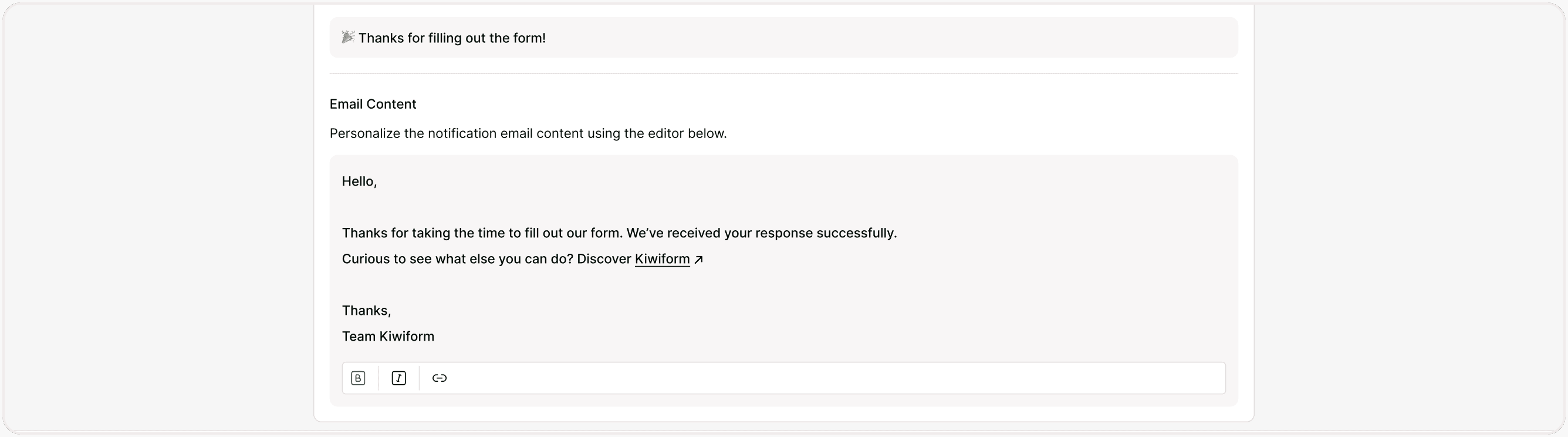
Customize Subject & Message
Customize respondent emails using personalized subject lines, variables, and formatted email content to create a more professional and branded experience.
Save Configuration
Click Save Changes to apply the respondent email workflow and enable automated emails for future form submissions.
Configuration Options Explained
Email To
Select the Email field from your form that should receive the confirmation or respondent email after the form is submitted. This must be an Email field added inside your form.
From Email Address
Choose the sender email address used to send respondent emails. You can use:
Default Kiwiform email
Custom SMTP email addresses
Connected Gmail accounts
Connected Outlook accounts
If no additional sender email accounts are configured yet, you can add one directly from the sender email dropdown using
+ Configure New Email Address.
Reply To
Set where replies from respondents should be delivered. By default, replies are sent to the form owner's email address, but you can also select an email field from the form or enter a custom email address.
Sender Name
Set the sender name recipients will see inside their inbox (for example, your company name, brand name, or support team name).
Email Subject
Customize the subject line to match your brand and context.
“Thanks for your submission!”
“Your registration is confirmed”
“We’ve received your request”
If you’re handling more than a few submissions per week, automation quickly becomes essential.
Use personalized subject lines
Pull values dynamically from form responses
Keep subject lines short and recognizable
Email Content
Email content can include formatted text, links, variables, confirmations, onboarding details, and follow-up instructions.
You can include:
Thank you message
Confirmation details
Next steps
Links
Contact information
Support details
Keep it clear, short, and helpful.
When to Use Email to Respondents
This feature is ideal for:
You can include:
Lead generation forms
Event registrations
Appointment booking forms
Product feedback forms
Application forms
Order confirmations
Survey acknowledgments
Booking confirmations
Consultation scheduling
Payment confirmations
Customer onboarding
Internal workflow notifications
It improves professionalism and user experience.
Best Practices
Always select the correct email field
Keep the message short and helpful
Include next steps or expected timelines
Add support contact information
Test before publishing
Use branded sender email addresses when possible
Test Gmail and Outlook sender accounts before publishing
Verify Reply To settings before enabling workflows
Keep confirmation emails short and actionable
Summary
Email to Respondents in Kiwiform helps automate personalized communication after form submissions. You can send confirmations, follow-ups, onboarding emails, and workflow notifications using default Kiwiform email, custom SMTP settings, or connected Gmail and Outlook accounts.